Connect Your Tango Card Account to SaaSquatch
Reward Integration
I owned this entire guide from start to finish.
For this endeavour I researched and familiarized myself with:
- Tango - Manage Basic Auth API keys in Tango
- Tango - Manage accounts and groups in Tango
- Tango - Manage accounts and groups in Tango
Any links to guides I did not author have been removed for this archived version below.
Learn how to connect your Tango Card gift card account to SaaSquatch.
Tango Card overview
Tango Card offers the ability to reward your participants with a number of different gift cards. Using Tango Card gift cards in your program makes it easy to set up and manage rewards.
Note: All test tenants are set up with the SaaSquatch Tango Card sandbox account. This allows you to test the reward flow without additional configuration. Your own Tango Card account can only be configured in your live tenant.
Tango Card account types
There are two types of Tango Card accounts: direct accounts and Saasquatch-managed sub-accounts.
Direct Tango Card account: Direct Tango Card accounts offer the most functionality and control within Tango Card. As of 2020 we recommend all clients create a direct Tango Card account to use with SaaSquatch.
SaaSquatch managed sub-account: Sub-accounts have access to the basic Tango Card functionality, however there are more restrictions and less control over managing the account. As of 2020 we do not recommend using a sub-account.
Connect your direct Tango Card account to SaaSquatch
If you were onboarded with SaaSquatch after 2020, you will most likely have your own Tango Card Rewards Genius login with full control over your users, funding, reporting, orders, and most importantly, Groups and Accounts.
Follow the instructions below to ensure that the correct Account from the correct Group is funding your SaaSquatch rewards.
- Head to your SaaSquatch account.
- In the upper left corner of your SaaSquatch account, select your Live tenant from the dropdown menu.
- Click Settings in the upper header of your SaaSquatch account.
- Select Integrations in the secondary header.
- Scroll down to the Tango integration and click the down arrow to expand the integration view.
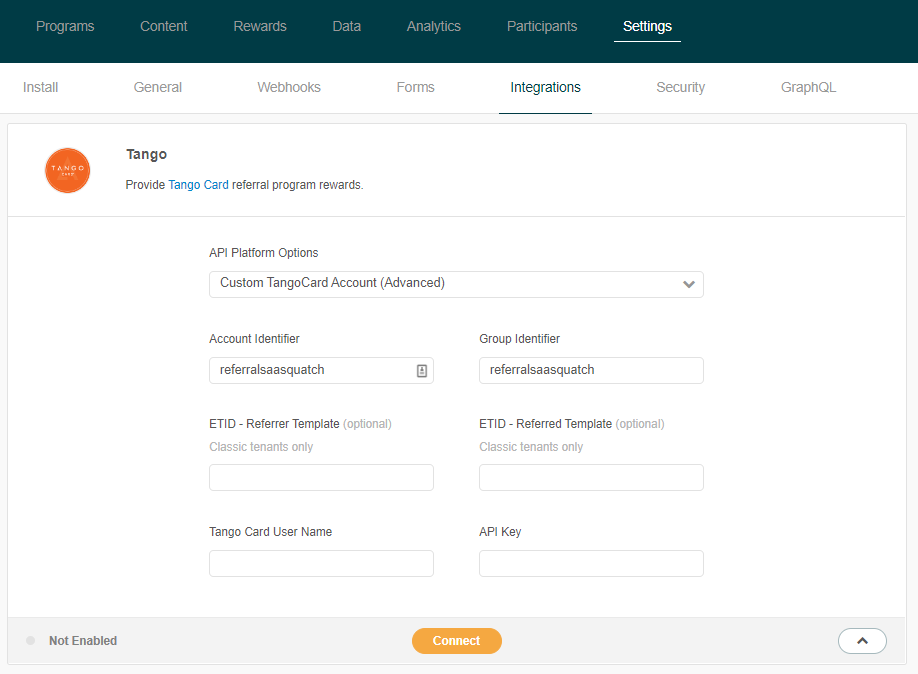
- Enter your Tango Card account information:
- Account Identifier
- Group Identifier
- Tango Card Username
- API Key (see Tango Card’s doc on how to locate it)
- Referrer Template ID (Classic only)
- Referred Template ID (Classic only) Tango Card - Direct Account_v2
- Click Connect at the bottom of the Tango Card integration section to save and connect your account.
Connect your SaaSquatch-managed TangoCard Account
- Head to your SaaSquatch account.
- In the upper left corner of your SaaSquatch account, select your Live tenant from the dropdown menu.
- Click Settings in the upper header of your SaaSquatch account.
- Select Integrations in the secondary header.
- Scroll down to the Tango integration and click the down arrow to expand the integration view.
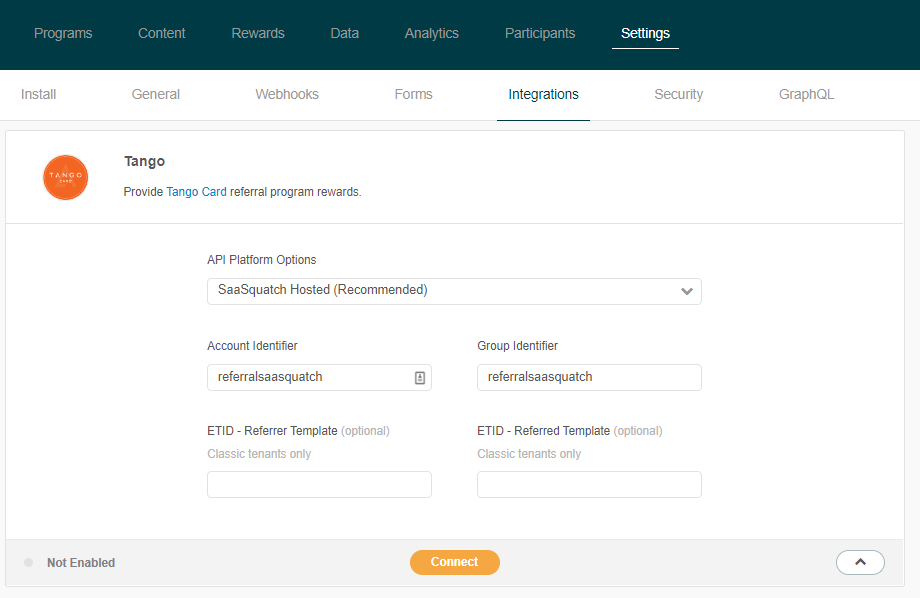
- Enter your TangoCard Account information:
- Account Identifier
- Group Identifier
- Referrer Template ID (Classic only)
- Referred Template ID (Classic only)
- Click Connect at the bottom of the Tango Card integration section to save and connect your account.
Configure your Tango Card emails
Tango Card offers the ability to customize the email that is sent with each gift card reward. To keep track of which customized email is sent with each reward, they use an Email Template ID (ETID) that can be included on each reward.
- Within your Tango Card account, create an email template. If you need help, see Tango Card’s Email Templates FAQ.
- Copy your Email Template ID (ETID).
- The ETID should follow this format:
Exxxxxxx.
- The ETID should follow this format:
- Head to your SaaSquatch account.
- In the upper left corner of your SaaSquatch account, select your Live tenant from the dropdown menu.
- Click Rewards in the upper header of your SaaSquatch account.
- Select an existing gift card reward, or create a new gift card reward.
- Paste the ETID value from the previous step into the Custom Tango Card Email Template ID field.
- Click Save to save your changes.
Now, when the gift card is earned, the custom email you have set up will be sent to the participant.