SaaSquatch + SFDC: Attribution via Contact Loookup
SFDC Integration
I owned this entire guide from start to finish.
For this endeavour, I researched and familiarized myself with the following Salesforce features:
Any links to guides I did not author have been removed for this archived version.
When properly synced, the SaaSquatch SFDC can be configured to automatically retrieve a Referrer’s (Contact) “Referral Code” and apply it to a Custom Field on the Referred User (Lead).
Introduction
This guide provides instruction on how to make use of a Lookup Custom Field to populate a Text Custom Field with the Referrer’s “Referral Code” on the Lead record, which can then be sent to SaaSquatch to attribute the Lead to the Contact (creating a referral).
Before You Start
Make sure that you’ve installed the SaaSquatch SFDC integration into your Salesforce instance, including adding the “Referral Code” field to the Contact Page Layout.
Make sure you have administrative access and know how to work with:
- Page Layouts
- Custom Fields
- Processes within Process Builder
The below guide also assumes that:
- Your new Referred Users are being created as Leads,
- You intend to create/update a user in SaaSquatch when a Lead is created/updated in SFDC.
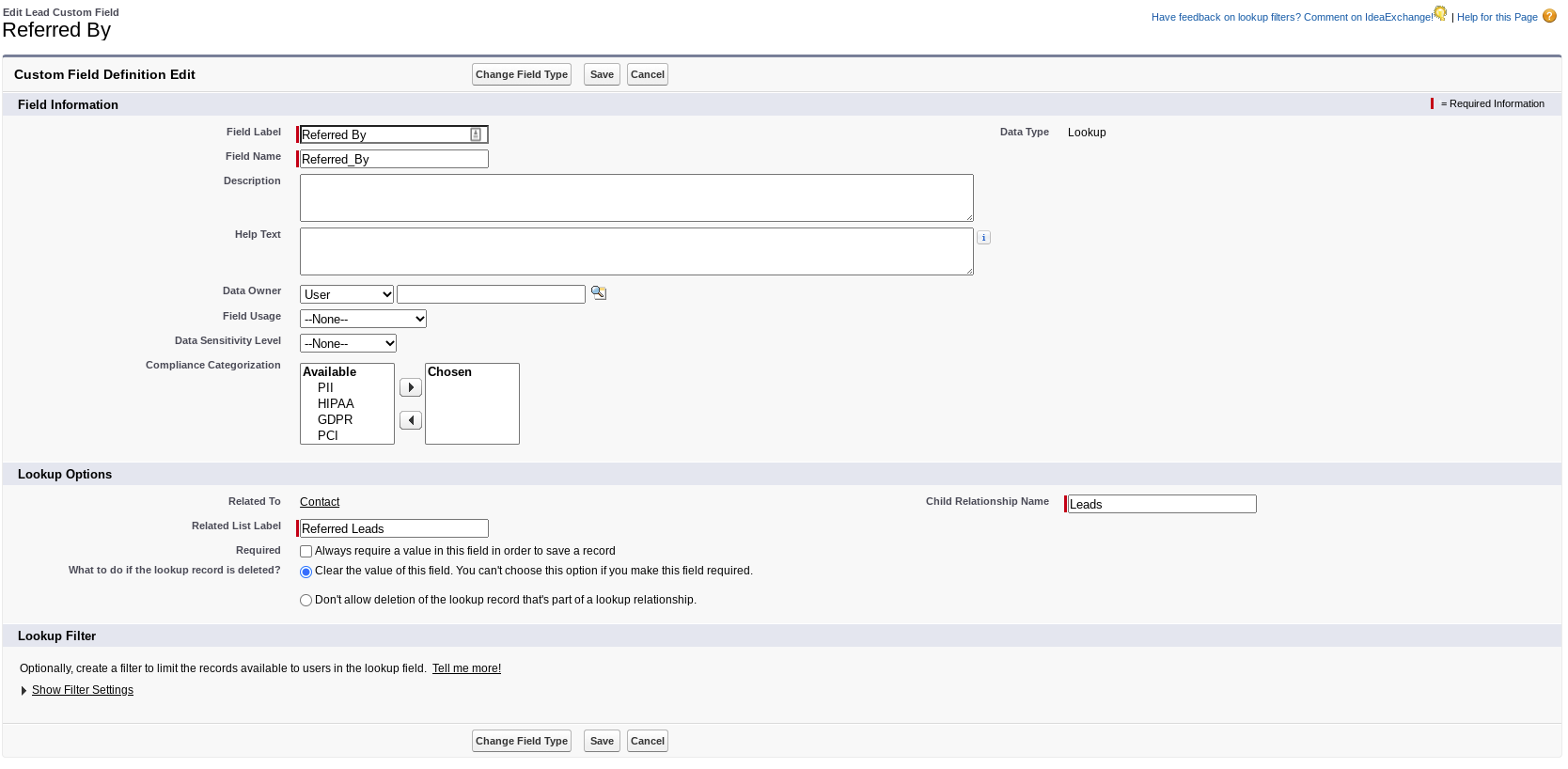
1. Creating the Contact Lookup Field
Create a new Custom Field on the Lead:
- Make sure to select a Data Type of “Lookup Relationship”
- Select “Contact” for your related object
- Name your field something like “Referred By”
- Name the Child Relationship Name something like “Leads”
- Name the related list something like “Referred Leads”
- SFDC Contact Lookup Field
2. Creating the ReferredByCodes Custom Field
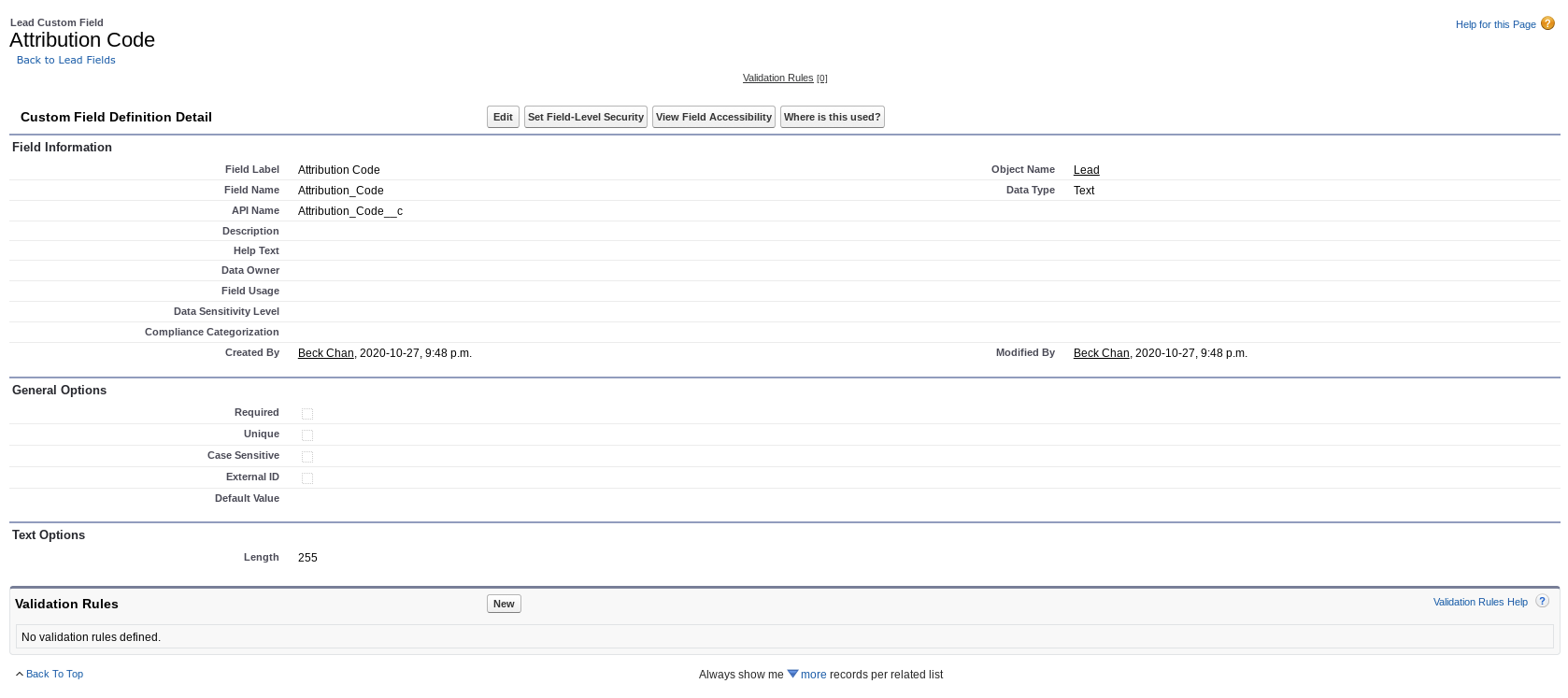
Create a new Custom Field on the Lead:
- Make sure to select a Data Type of “Text”
- Enter a max length (e.g.
255) - Name your field something like “Attribution Code” or “Referred By Code”
3. Automatically Populating the Referral Code When a Contact is Selected via Lookup
Once you’ve set up a Lookup field to search for Contacts, and a Text field to hold the Referrer’s “Referral Code”, you can build a Process to grab the “Referral Code” from the Contact record and place it onto the custom field on the Lead.
Create a New Process. Give it a name and description that reflects the outcome of the Process, such as “Apply Referral Code from Contact”.
For ‘The process starts when’, select “A record changes”.
Add an Object, and select ‘Lead’ as your Object. We recommend allowing the Process to start “when a record is created or edited”, so that both creation and update of users can occur.
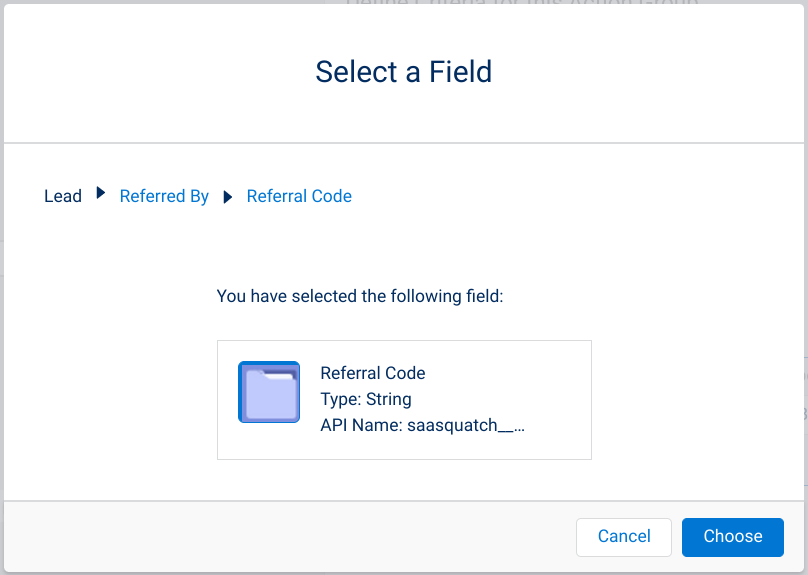
Add your Criteria. We recommend setting a Condition that the Process will only run if the “Referral Code” field on the Contact that was looked up exists (i.e.
Is null: False): SFDC Contact Referral Code SFDC Referral Code Exists

- Add your Actions:
- Select ‘Update Records’ under “Action Type”, and give your action a name that reflects the outcome (e.g. Apply Referral Code)
- Choose ‘Select the Lead record that started your process’ under your “Record Type”.
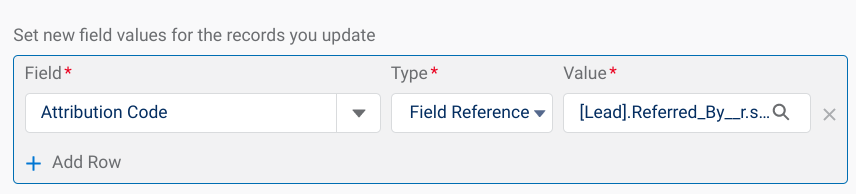
- Set the field value for the Lead you want to update. Select the Text Custom Field you created previously (e.g. Attribution Code) and select the Contact’s Referral Code as the Value via a Field Reference Type:
- Once your Process is completed and Saved, make sure to Activate it so it can run.
4. Sending the ReferredByCodes Information to SaaSquatch
Once the your ReferredByCodes Custom Field is populated, you can send that information to SaaSquatch via an upsert.
When defining your Apex Variables in your Process, select the Field “Referred By Codes” and then reference the Custom Field you’ve created and configured to autopopulate with the Referrer’s “Referral Code”:
